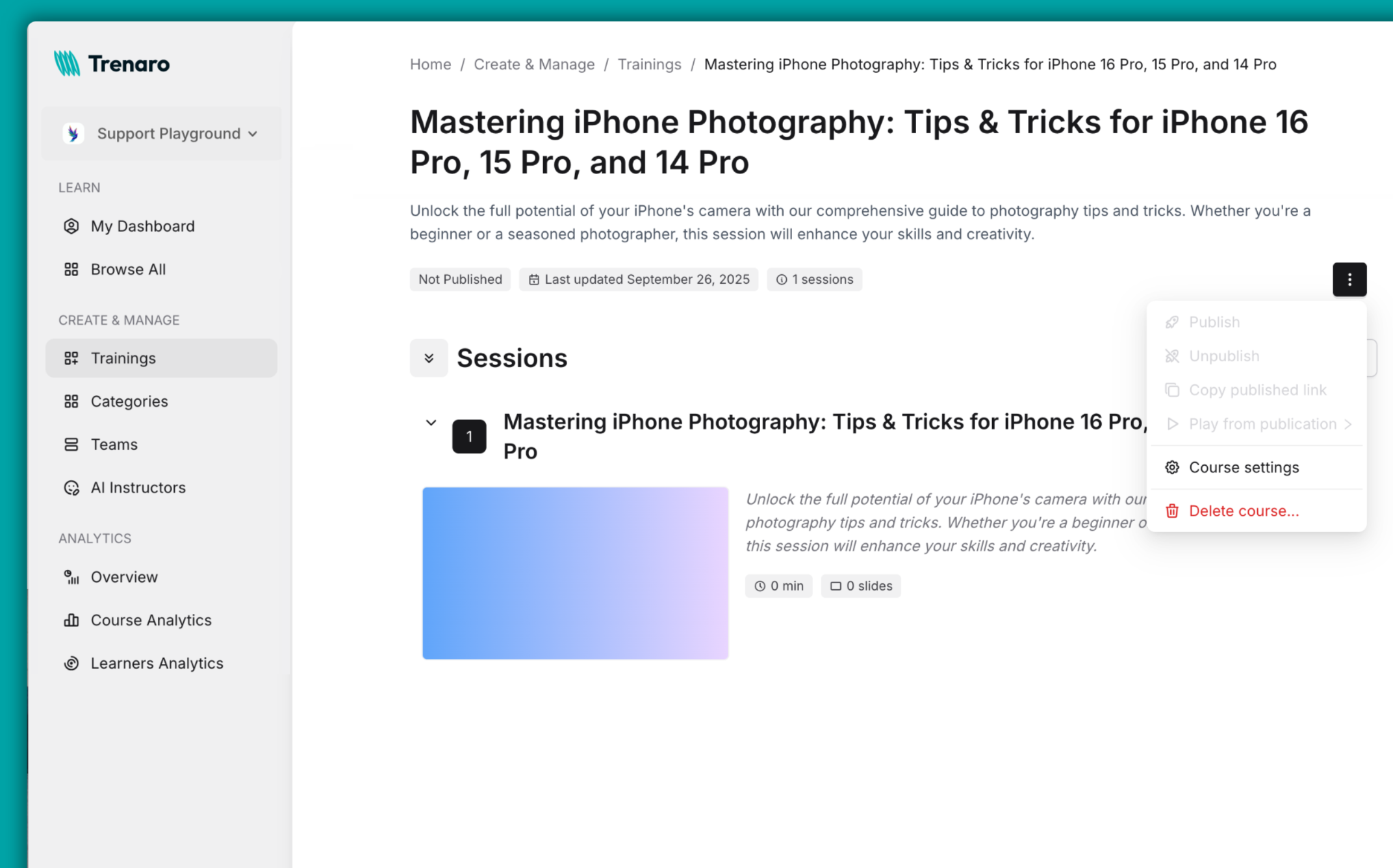
Overview
Enter the Title of your course as it will appear to users and during delivery. Provide a concise Description of the course that will be displayed to learners during course delivery.
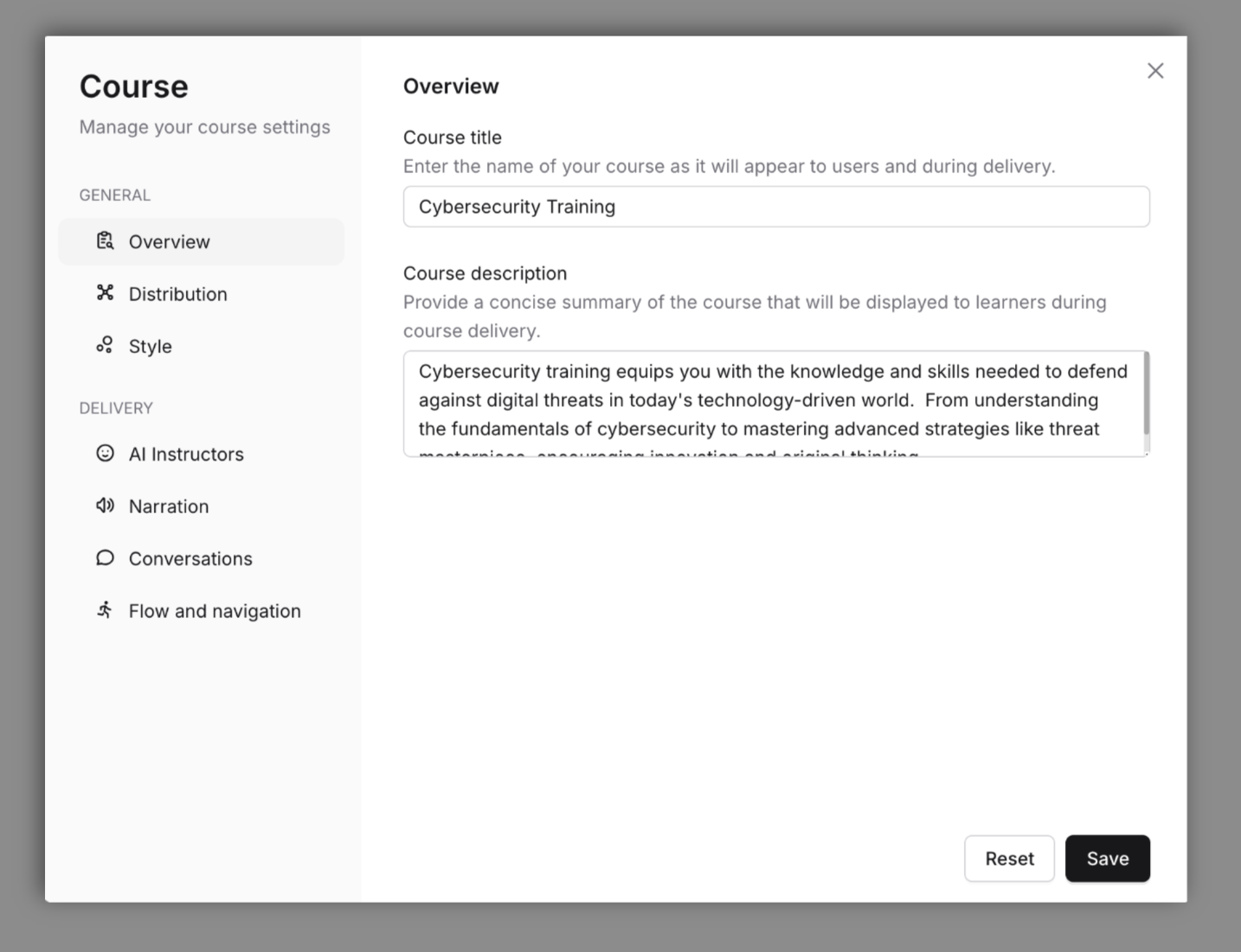
Distribution
Select which teams and categories can access this course when published. Set the Access Control, Discoverability, and Categories that will access the course.
You can read more on this here.
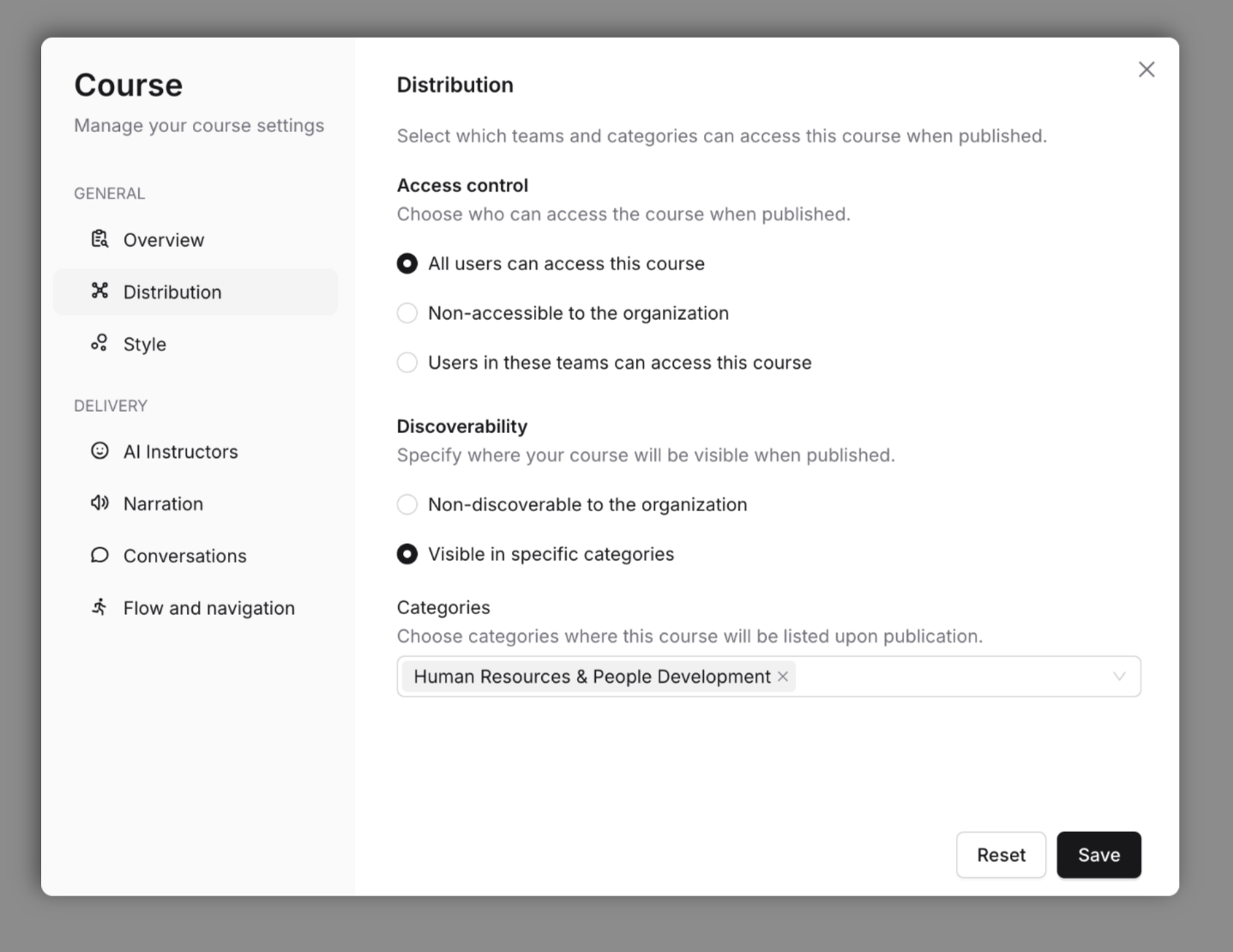
Style
Customize the slides' and presentation background color of your Course.
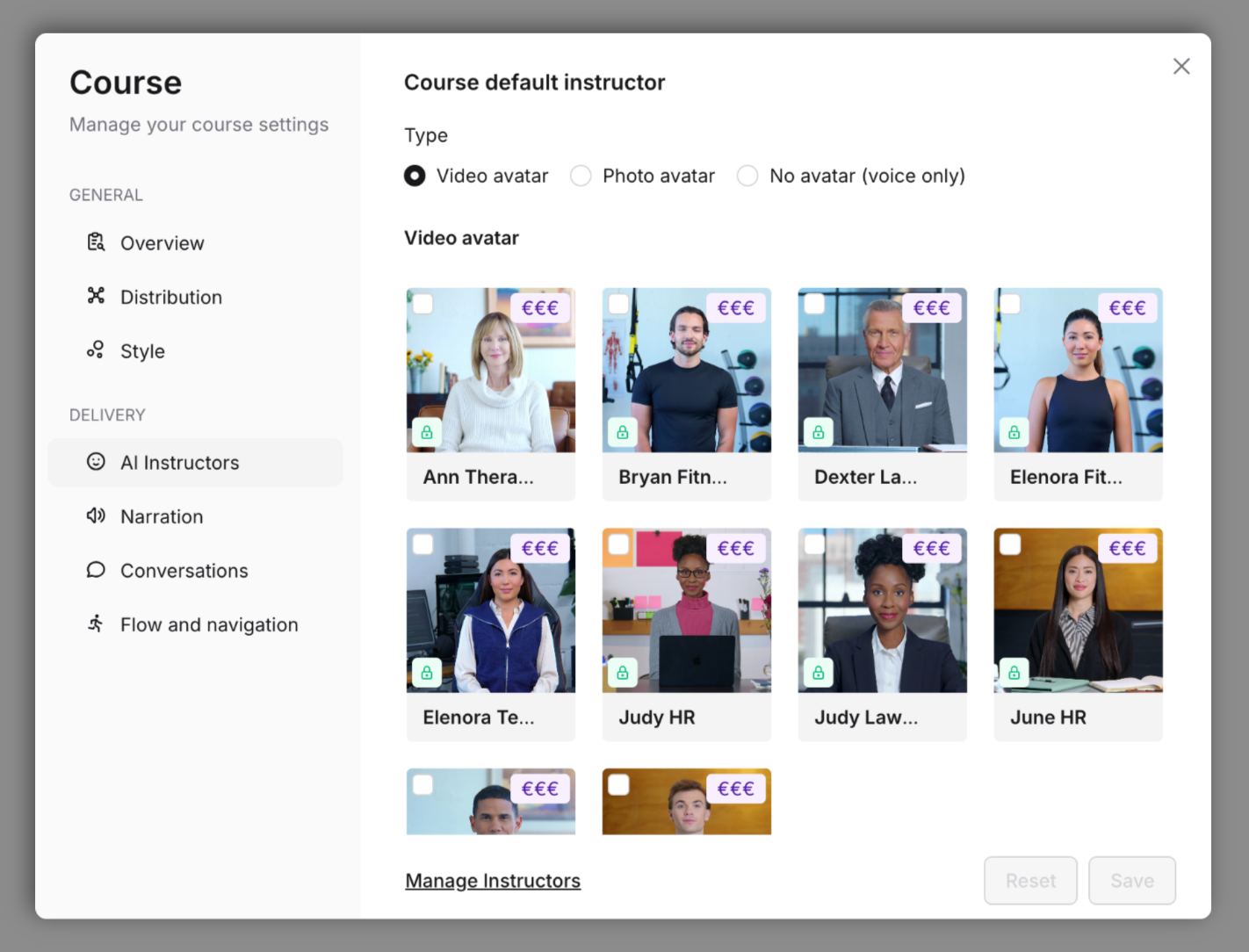
AI Instructors
Set your Course default instructor that will be used throughout your sessions.
Keep in mind that you can change the AI instructors for specific Sessions
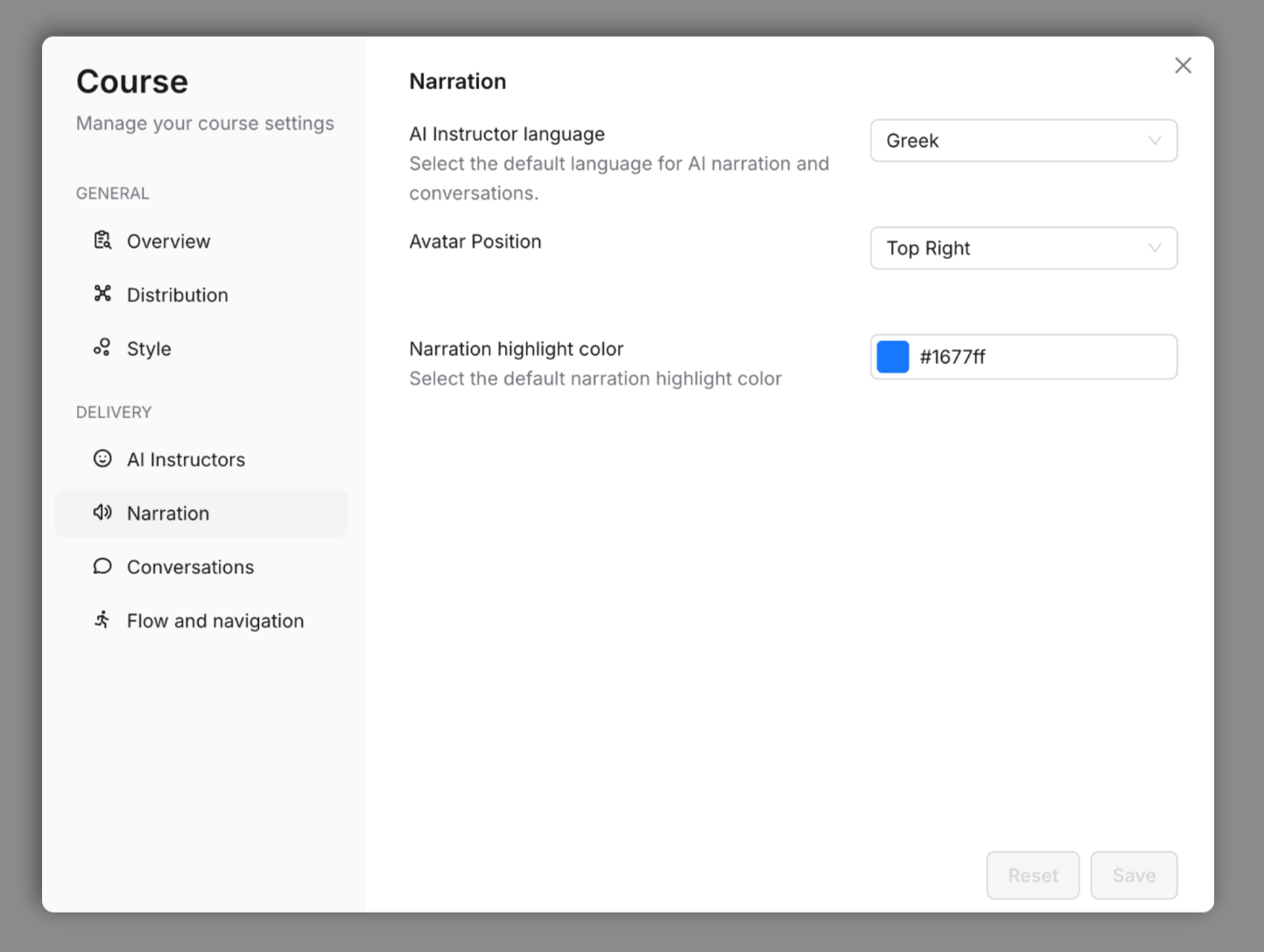
Narration
Select the default language for the AI narration and conversations, along with the avatar position.
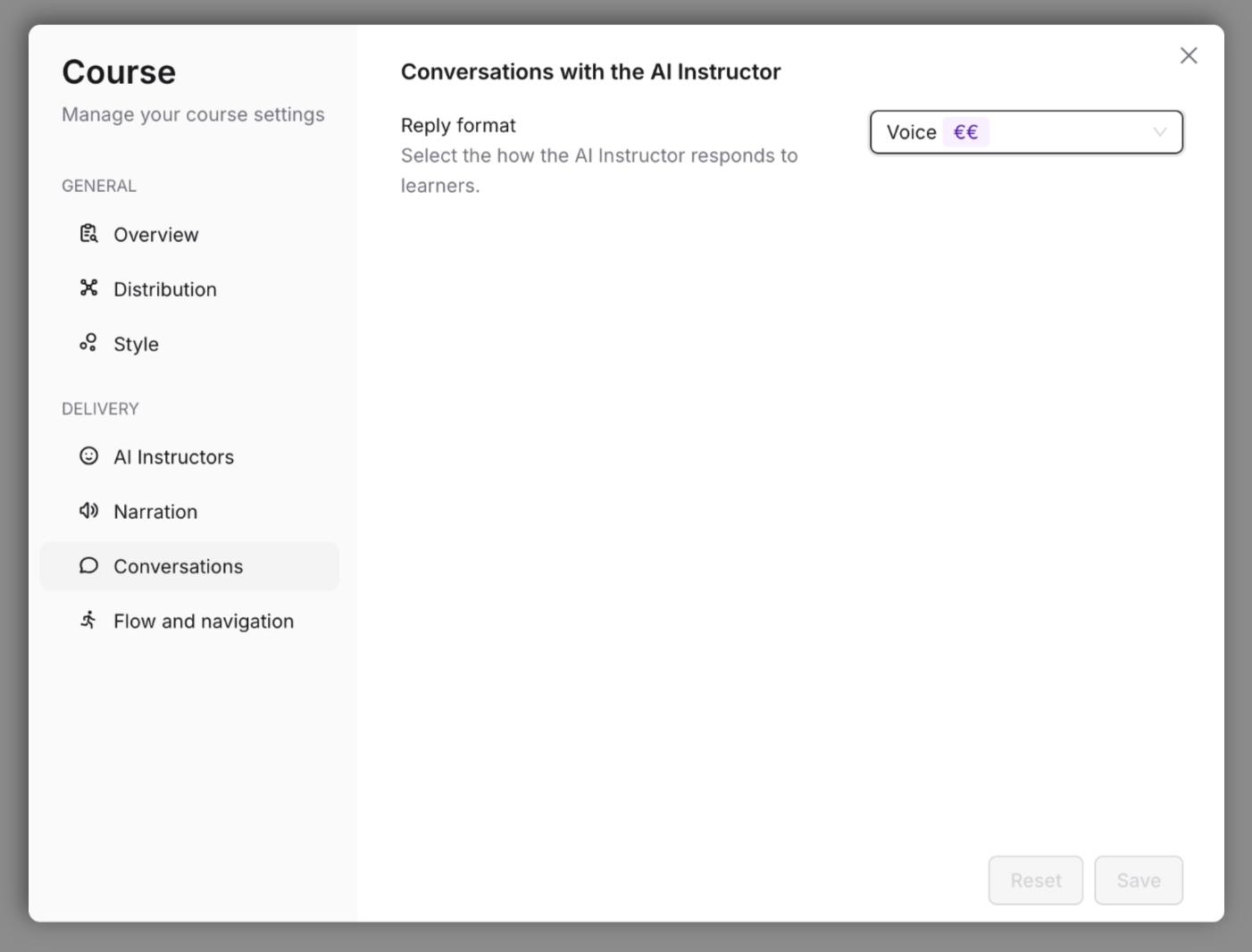
Conversations
Select the reply format of how the AI instructor responds to learners. Choose between Voice or Text-only format
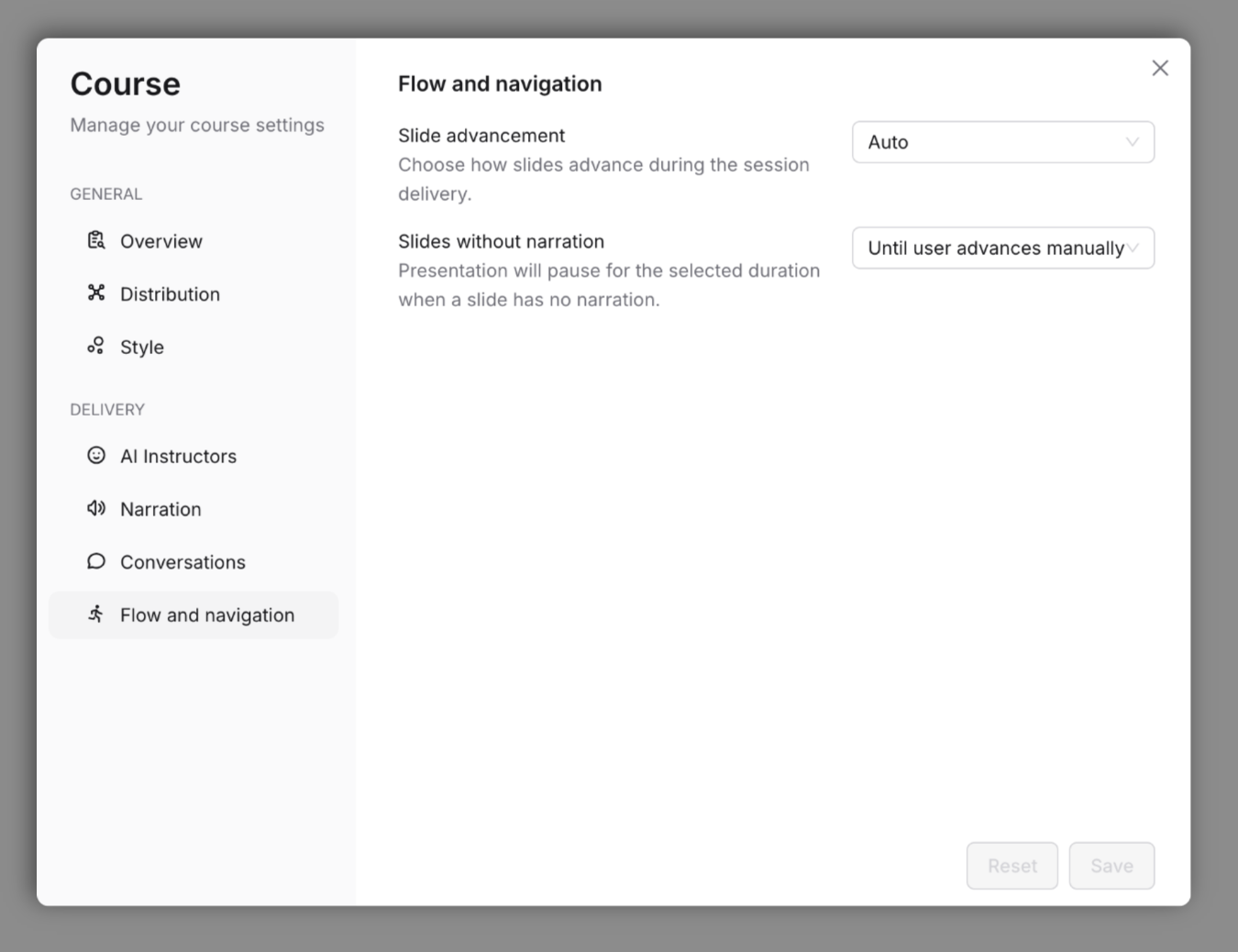
Flow and Navigation
Fine-tune the learning experience by selecting how slides will advance during a session. Set the default pause time on the slides that do not have a narration.
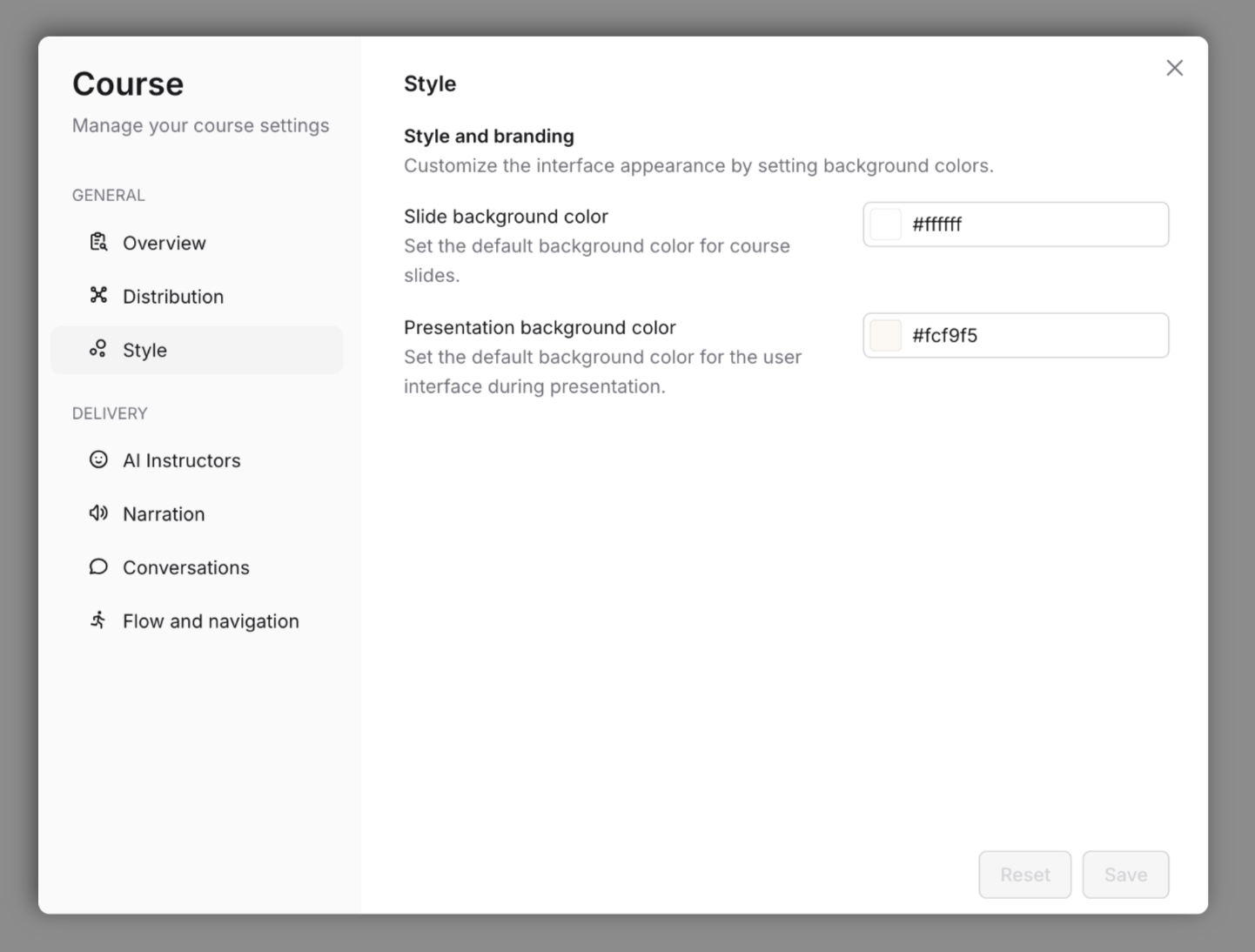
Edit Course Settings
Once your course has been created, you can still edit and update your Course Settings.
You'll be able to do so from the Create and Manage section, locate and select the Course. Select the Course Settings option from the main menu on the right.