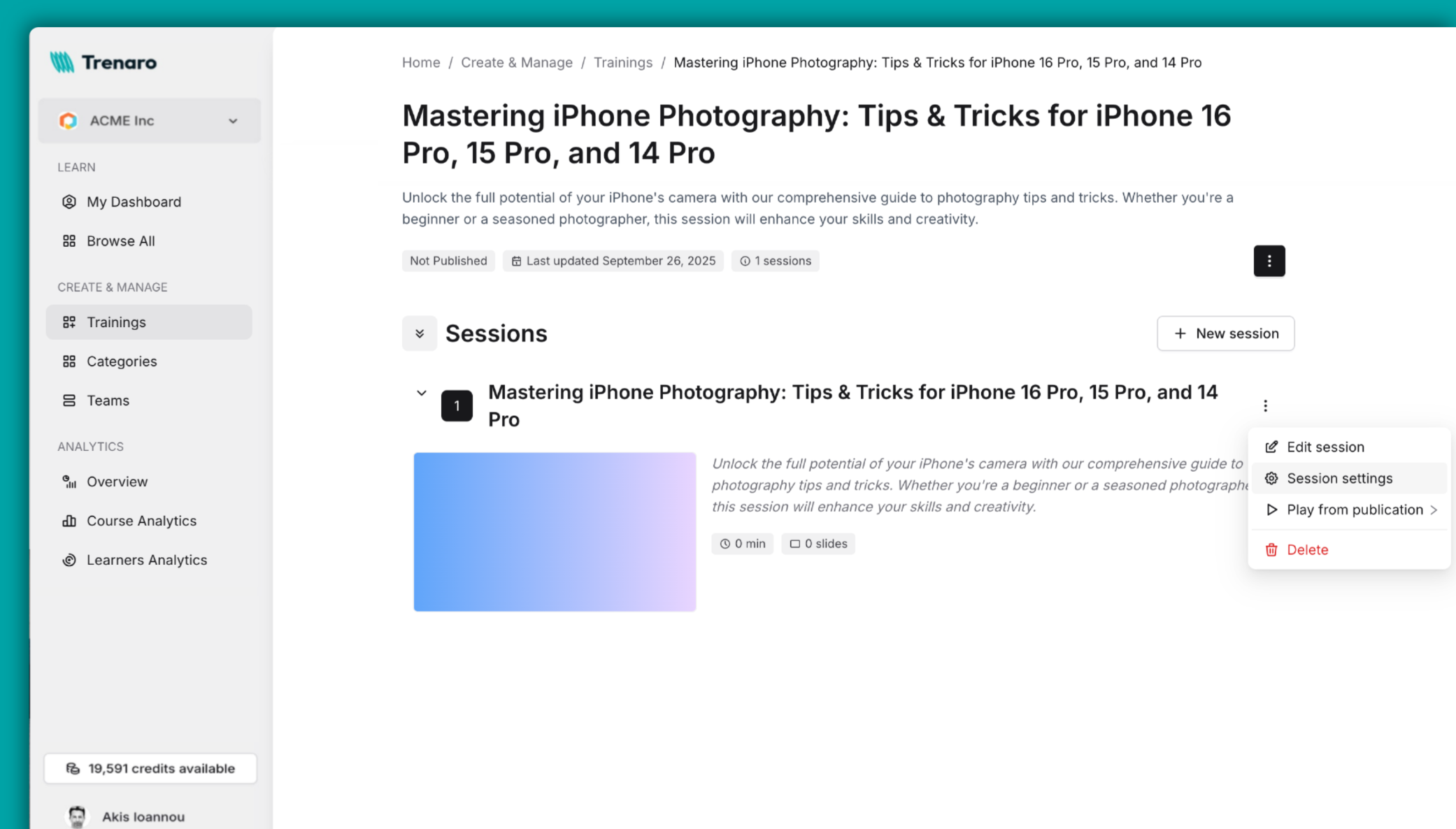
The Session Settings section allows you to configure and personalize the overall learning experience for each session.
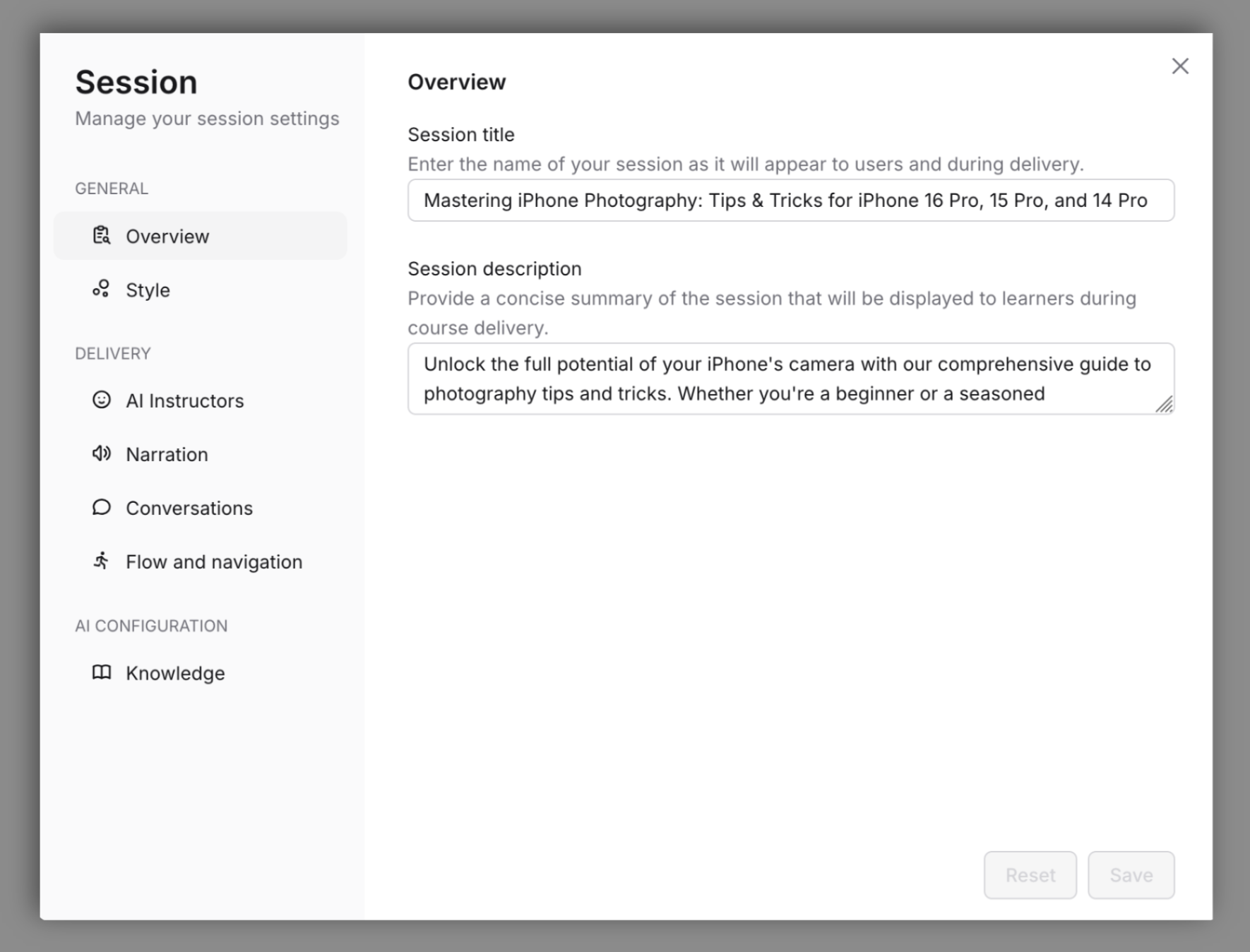
Overview
Enter the Title of your Session as it will appear to users and during delivery. Provide a concise Description of the session that will be displayed to learners during course delivery.
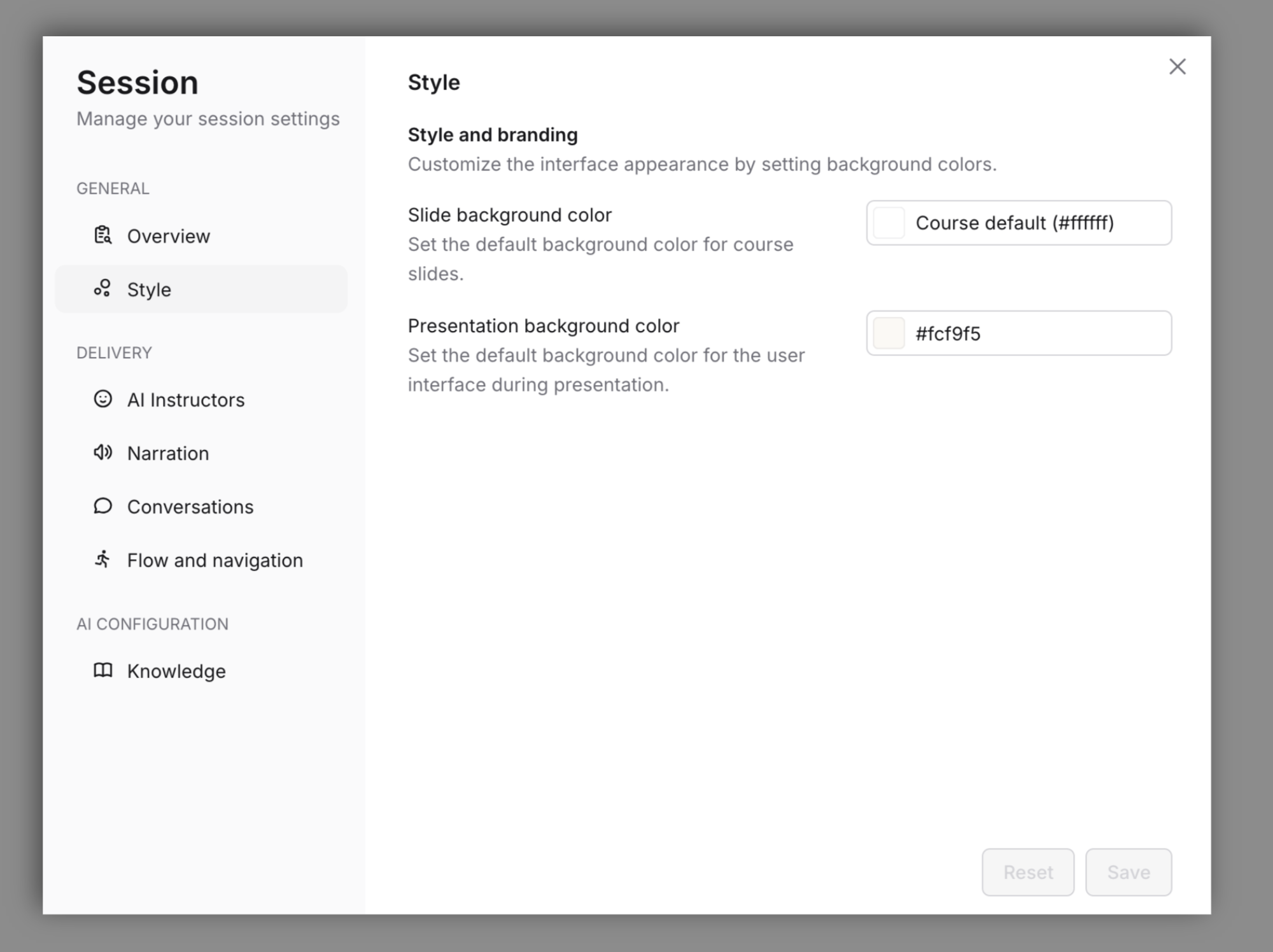
Style
Customize the interface appearance by setting background colors
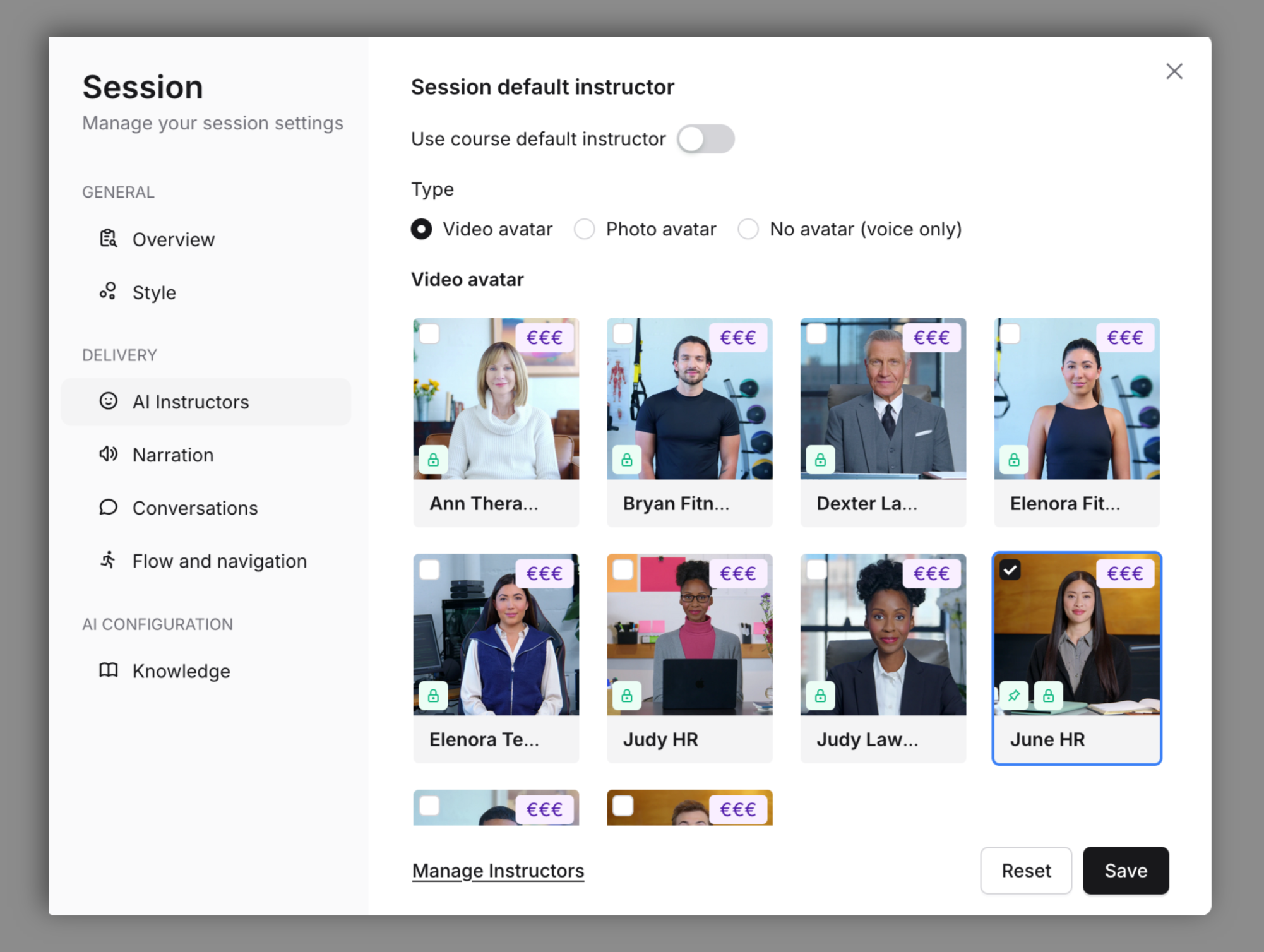
AI Instructors
Set your Session default instructor or use your course default instructor.
Narration
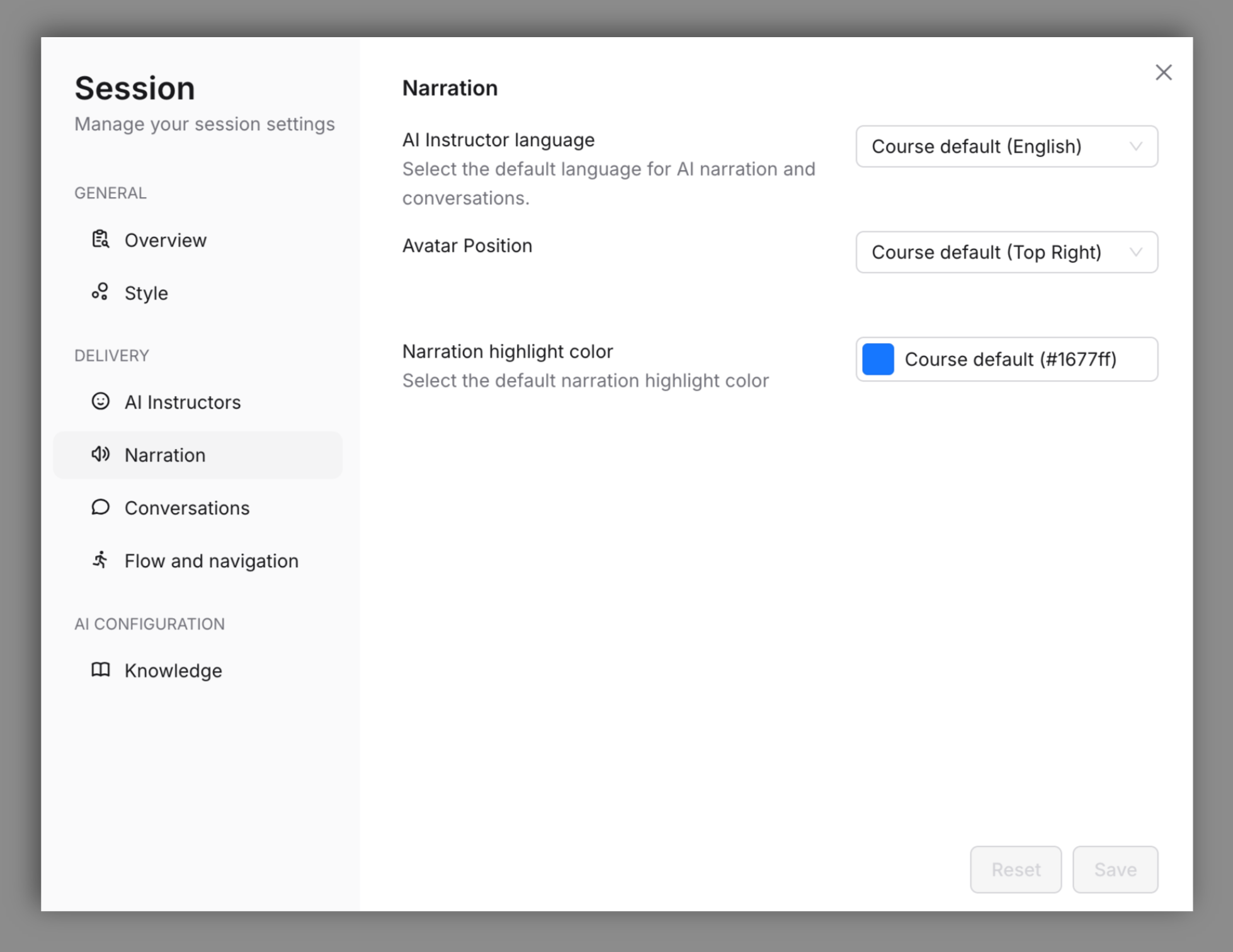
Select the default language for the AI narration and conversations, along with the avatar position and the narration highlight color
Conversations
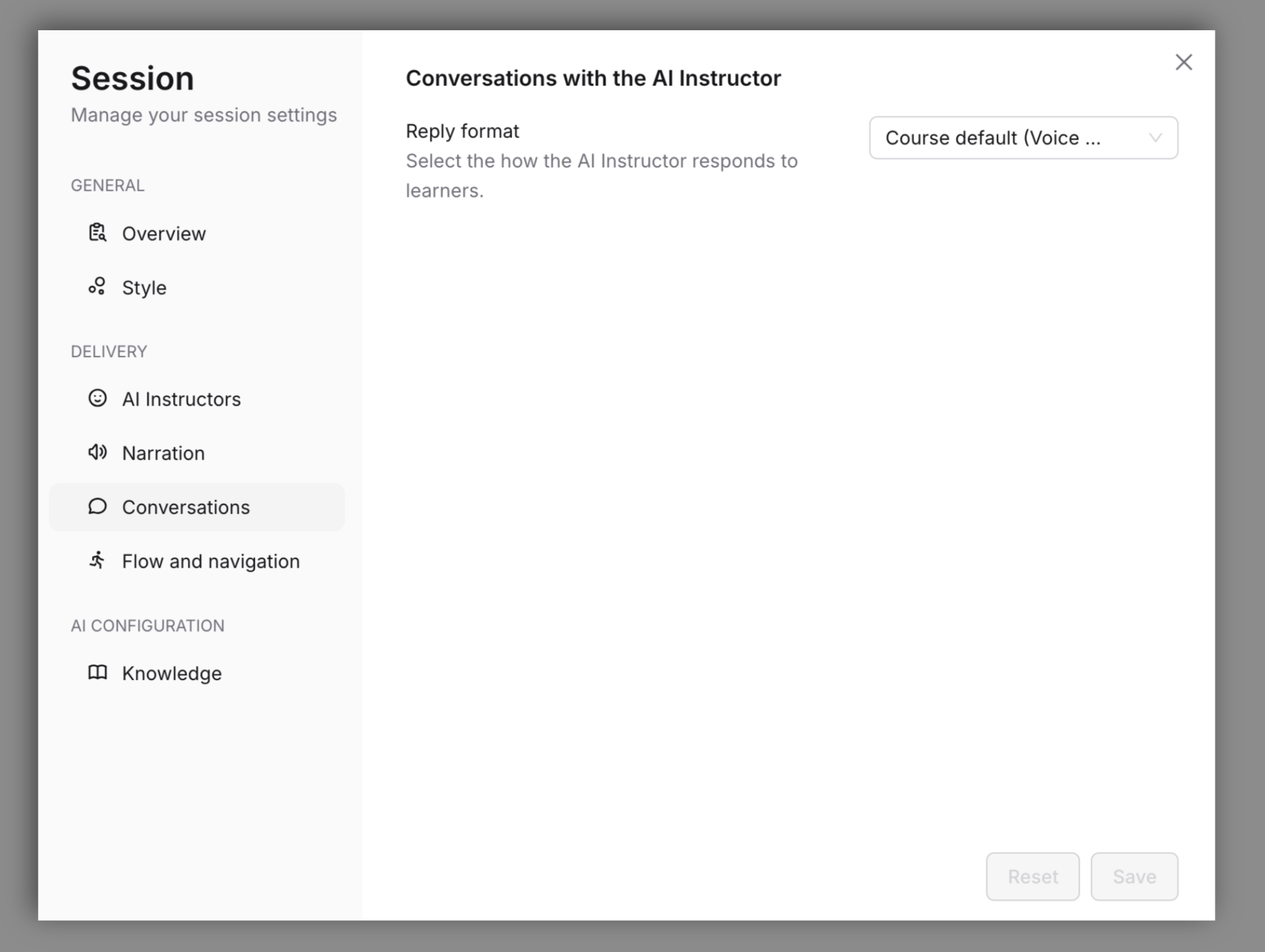
Select how the AI Instructor responds to learners. The options include Voice or Text only formats.
Flow and Navigation
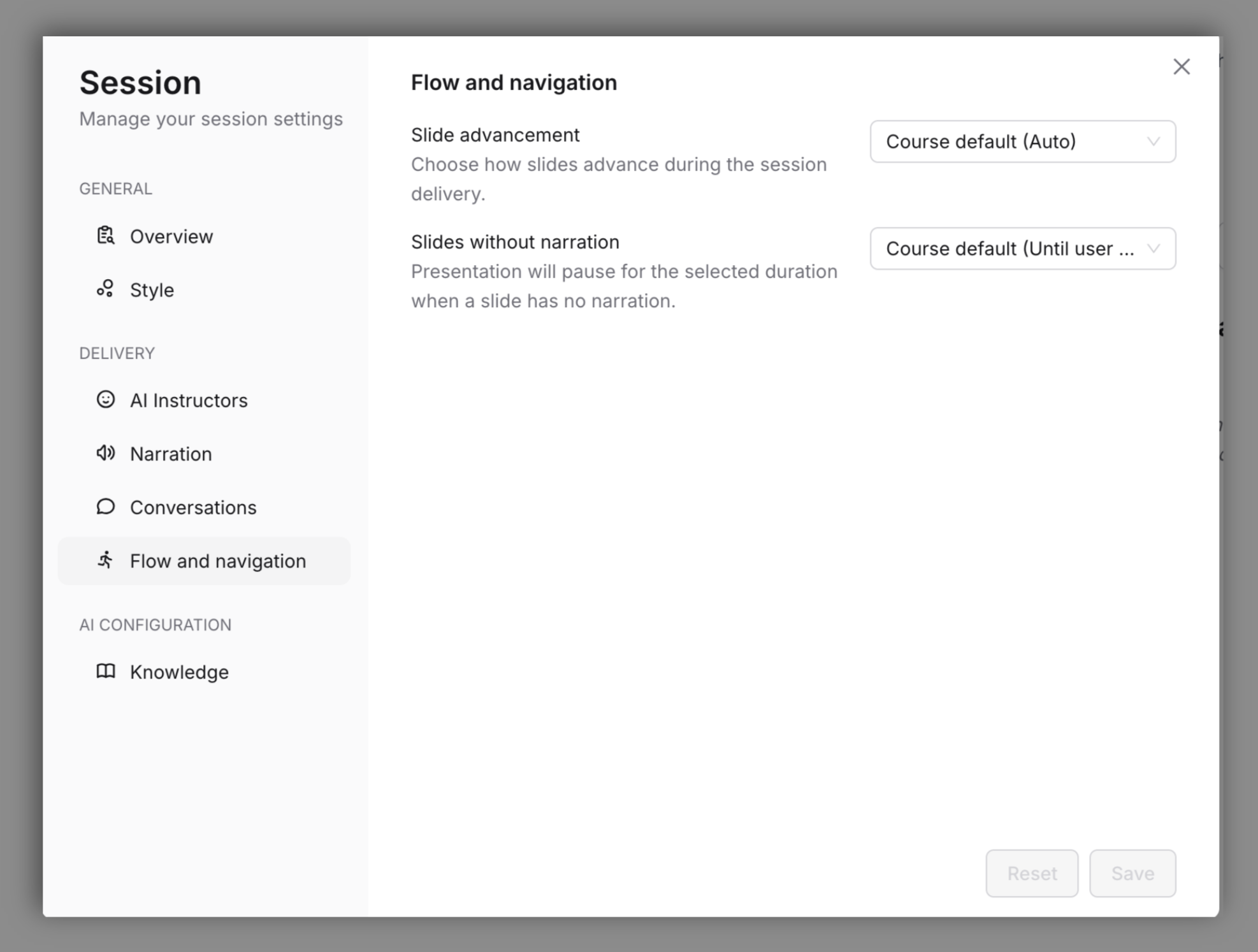
Fine-tune your slide's advancement and how long the slides with no narration will display.
Knowledge
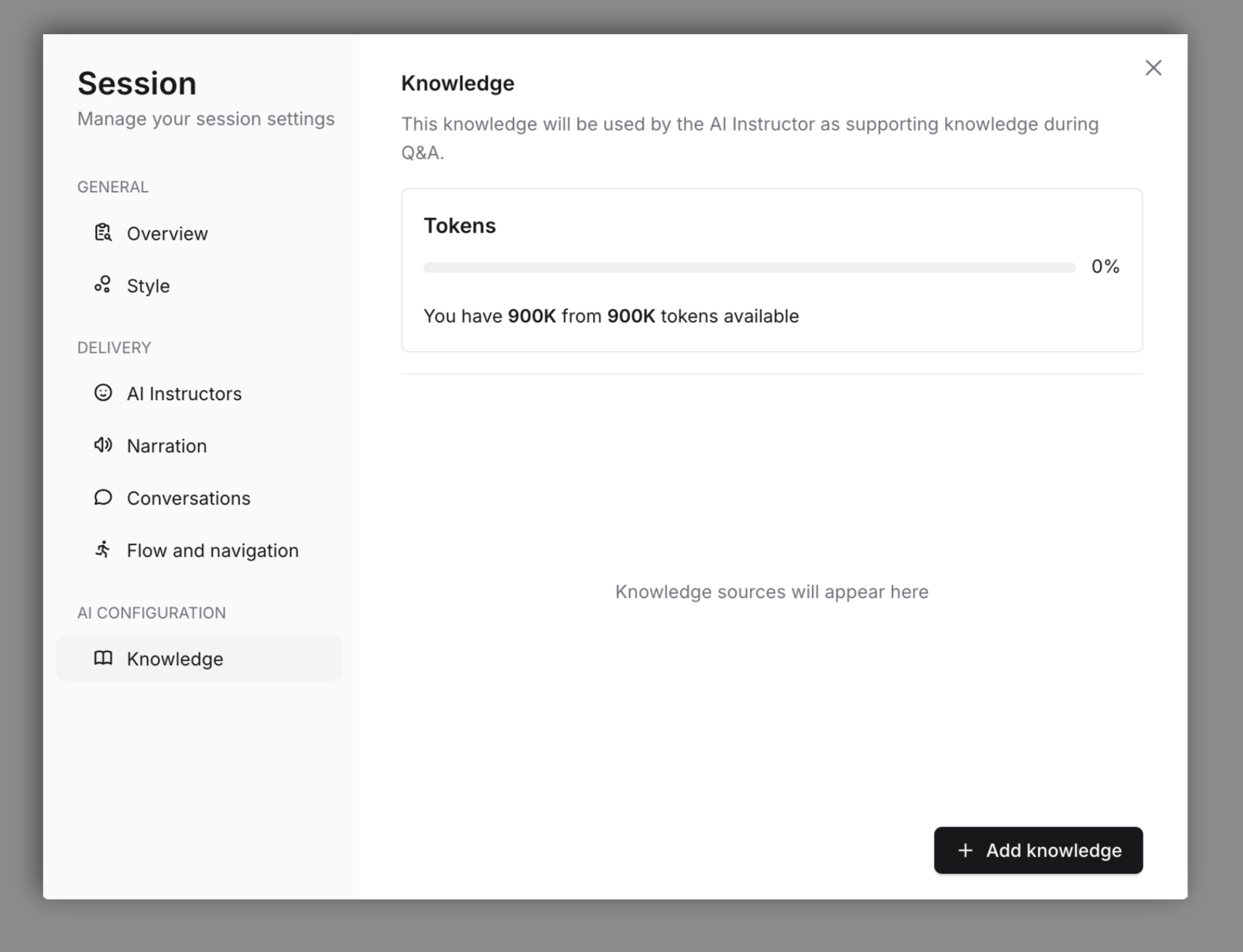
The Knowledge section allows you to enrich the AI Instructor’s understanding by providing additional materials that support user interactions during Q&A. This section enables you to include text-based information, definitions, concepts, and other relevant resources that help the AI Instructor deliver more accurate and contextual responses. You can add knowledge in three different ways: by uploading documents, adding URLs, or entering text directly.
1. Upload Knowledge Files:
You can upload documents to enhance the AI Instructor’s knowledge base. Supported file types include PDF, PPTX, DOC, TXT, and IMG. Once uploaded, these files become part of the AI Instructor’s internal reference materials, allowing it to use the content when answering user questions or providing explanations.
2. Add Knowledge via URL:
You can also provide a URL for the AI Instructor to retrieve content and use it as a knowledge source. When adding a URL, you will be asked to define how the document should be used. It can either be embedded, meaning the AI Instructor will use it in every interaction, or set for on-demand retrieval, meaning the content will only be referenced when necessary. In addition, you should describe in a few sentences the role you want this document to play during conversations, specifying how it should support or guide the AI Instructor’s responses.
3. Add Text-Based Knowledge:
Alternatively, you can type or paste text directly into the AI Instructor’s knowledge base. This method is ideal for short explanations, definitions, or concept notes that are relevant to the Q&A process. As with other knowledge types, you will need to decide whether the information should be embedded in every interaction or kept in the background for on-demand retrieval, depending on how frequently you want it to influence responses.
Edit Session Settings
Once your session has been created, go to the Create and Manage section, locate the course that contains the session, and select it. From there, you can edit or update the specific session as needed.